
Totality for clients
Payments
See your gym membership, save or change your card, find your purchases and receipts, and check your PT credits.
If your gym or trainer takes payments through Totality, everything about your money is on one Payments screen with four tabs: Memberships, Payment method, Purchases and Credits.
To open it:
- On Home, tap the Payment Method or Card on file tile, or
- On your Schedule, tap the credits card (it opens the Credits tab), or
- In Settings, tap Purchases.
The Payment Method tile only shows on Home if your gym or trainer takes payments in Totality.
Totality doesn't charge clients anything. The money you pay goes to your gym or trainer, through Stripe.
Memberships#
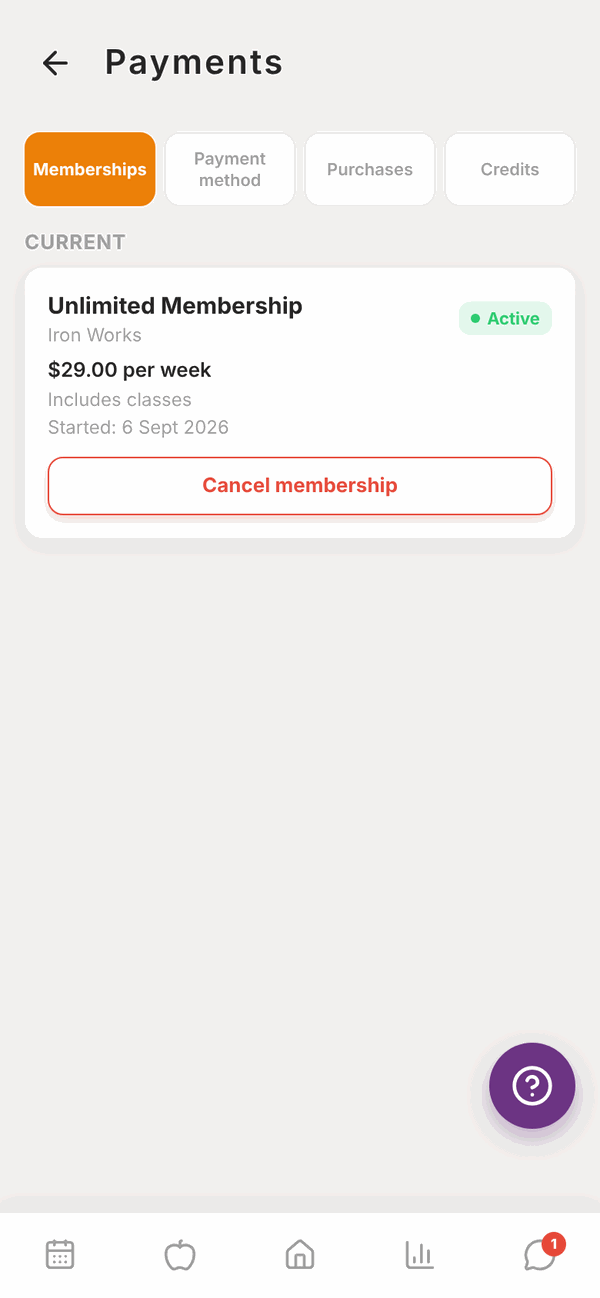
Under Current you'll see each membership you have with its name, your gym, the price, an Active label, whether it Includes classes, and the date it Started. Old memberships are under Past.
Cancel a membership#
If your membership is billed through Totality, you'll see a Cancel membership button.
- Tap Cancel membership.
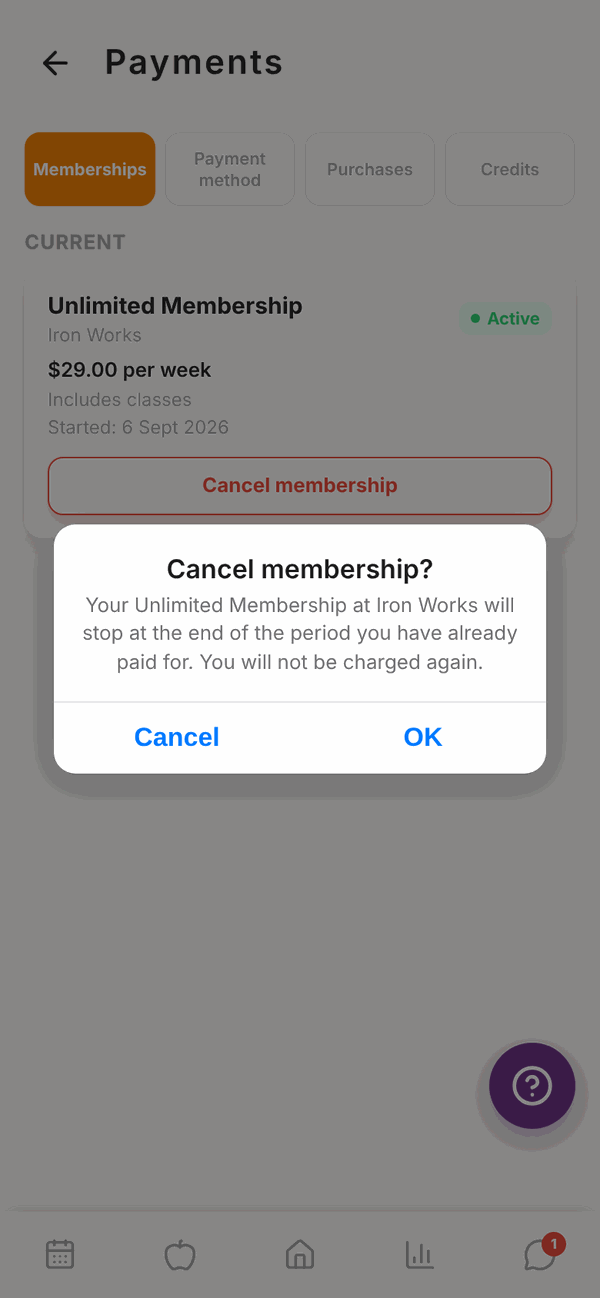
- Read the message. It tells you the membership stops at the end of the period you've already paid for, and you won't be charged again.
- Tap Cancel membership to confirm, or Keep membership. (On the website the buttons say OK and Cancel.)
You'll see "Membership cancelled" with the date it keeps working until.
If your gym bills you outside Totality, you'll see Billing for this membership is handled by your gym and Contact your gym to cancel, with buttons to email or call them.
Payment method#
Save the card your gym or trainer charges for memberships, packages and paid classes.
Add a card#
- Open the Payment method tab.
- Tap Add card.
- If you belong to more than one gym, pick Which gym? the card is for.
- Enter your card details on the secure Stripe screen. On the website, you'll go to a Stripe page and come back to Totality when you're done.
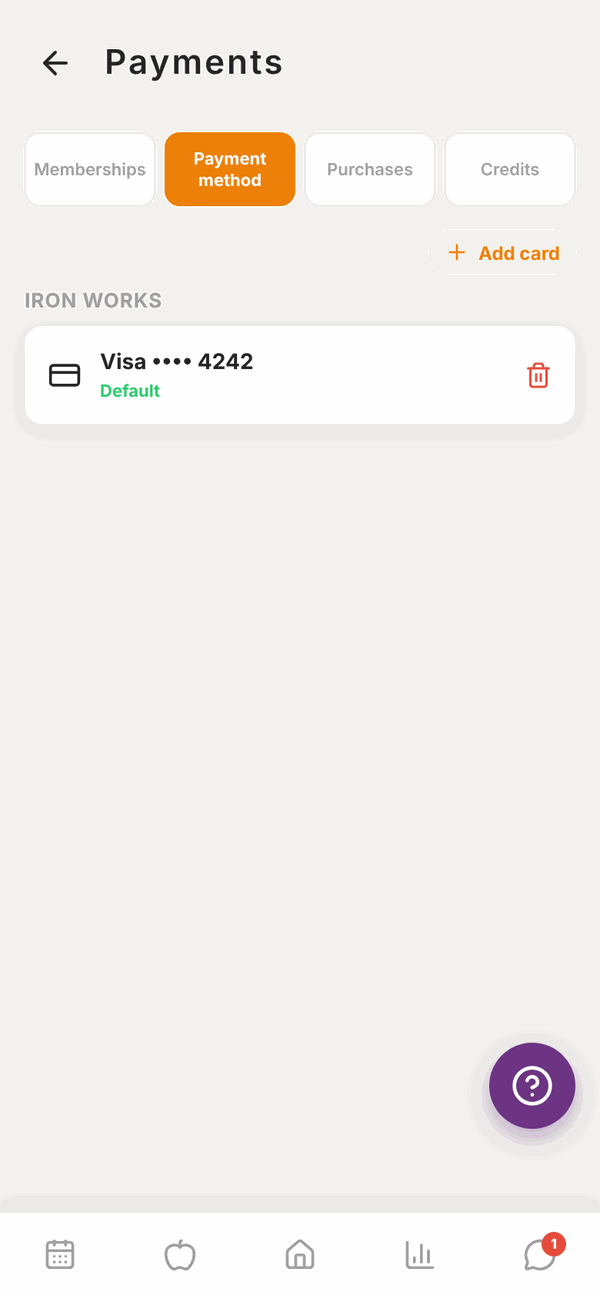
- Your card shows with its brand and last four digits, for example Visa •••• 4242.
Change or remove a card#
- Tap Set default on a card to make it the one that's charged.
- Tap the red bin to remove a card, then confirm with Remove.
Card details are held by Stripe, not Totality. Totality only stores the card brand and last four digits.
Purchases and receipts#
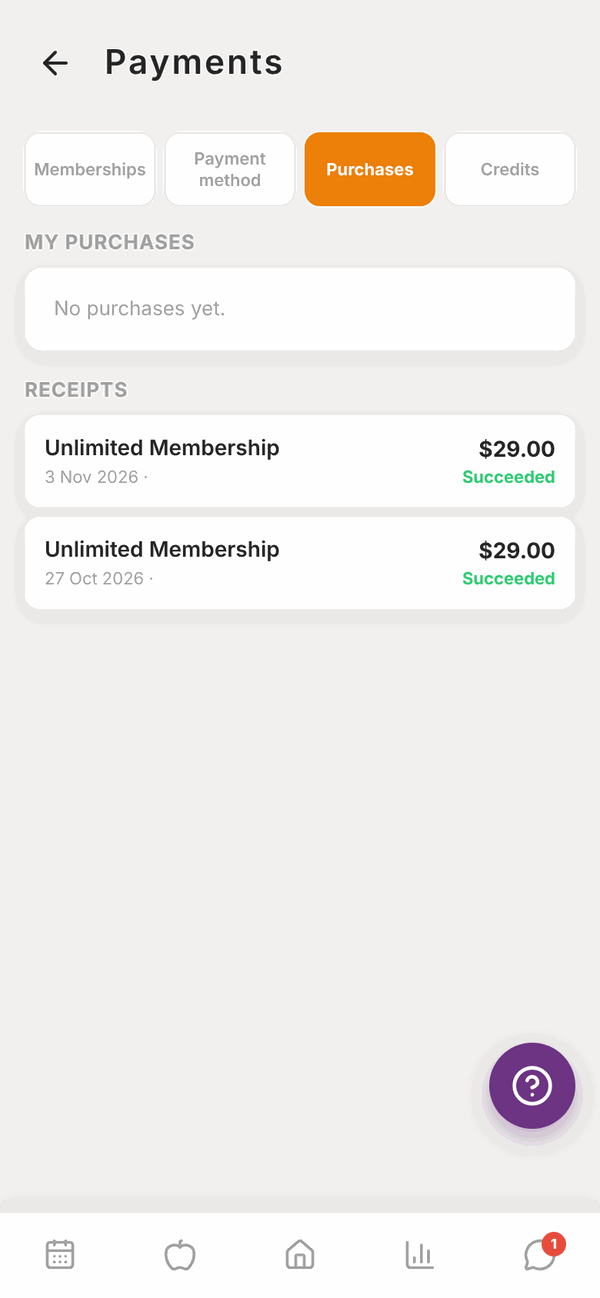
- My purchases lists things you bought from the shop, with the date, price and status.
- Receipts lists your other payments, like membership and package payments, with the date, amount and whether it Succeeded.
Credits#
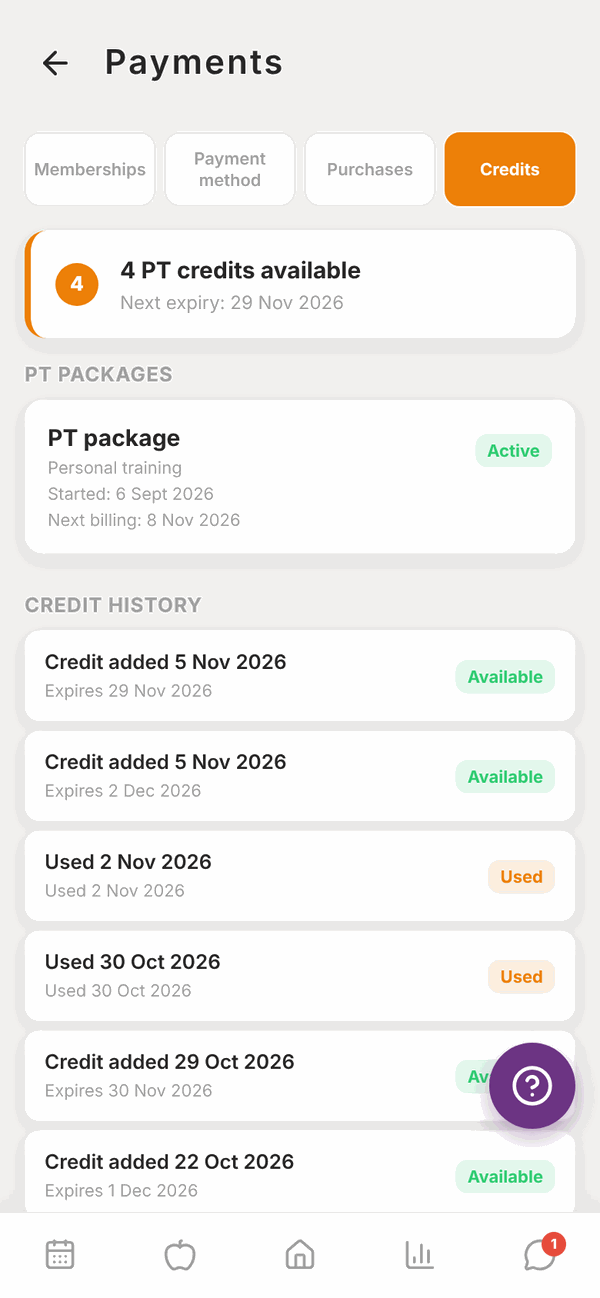
The Credits tab shows:
- How many PT credits you have available and when the next one expires.
- Your PT packages, with their status (Active, Past due, Paused or Cancelled), when they started and when they Next bill.
- Credit history: every credit, when it was added, when it expires, and whether it's Available, Used, Expired or Cancelled.
See Sessions, classes and credits for how credits work.
Questions#
I don't see Payments on Home.
The Payment Method tile only shows when your gym or trainer takes payments through Totality, or you've already saved a card. If you pay your gym another way, you won't see it.
My payment failed. What do I do?
Add a new card or update your default card in the Payment method tab, then tell your gym or trainer. They can retry the payment. Your gym can also send you an email called "Please update your card for [gym name]" with a link to update it.
How do I get a refund?
Refunds are handled by your gym or trainer, not Totality. Contact them. You can read Totality's refund policy in Settings under Refund Policy.
Can I pause my membership?
Your gym can freeze (pause) a membership. Ask them.
Is my card safe?
Yes. Cards are handled by Stripe, a major payment company. Totality never sees your full card number.
I cancelled. Why can I still book classes?
Your membership keeps working until the end of the period you've paid for. After that it ends.
My PT package shows "Past due".
A payment didn't go through. Update your card in Payment method and let your trainer know.