
Tali HQ guide
Receipts
Snap a business receipt, let Tali fill in who, when, how much and the GST, and download the whole financial year for your accountant.
Receipts keeps your business receipts ready for tax time. Snap one, Tali reads it, you check it, and at the end of the financial year it's one download for your accountant. Tali HQ
Open Your world, Work, Receipts. Receipts only show if you told Tali you run a business. For your own spending, use Personal money.
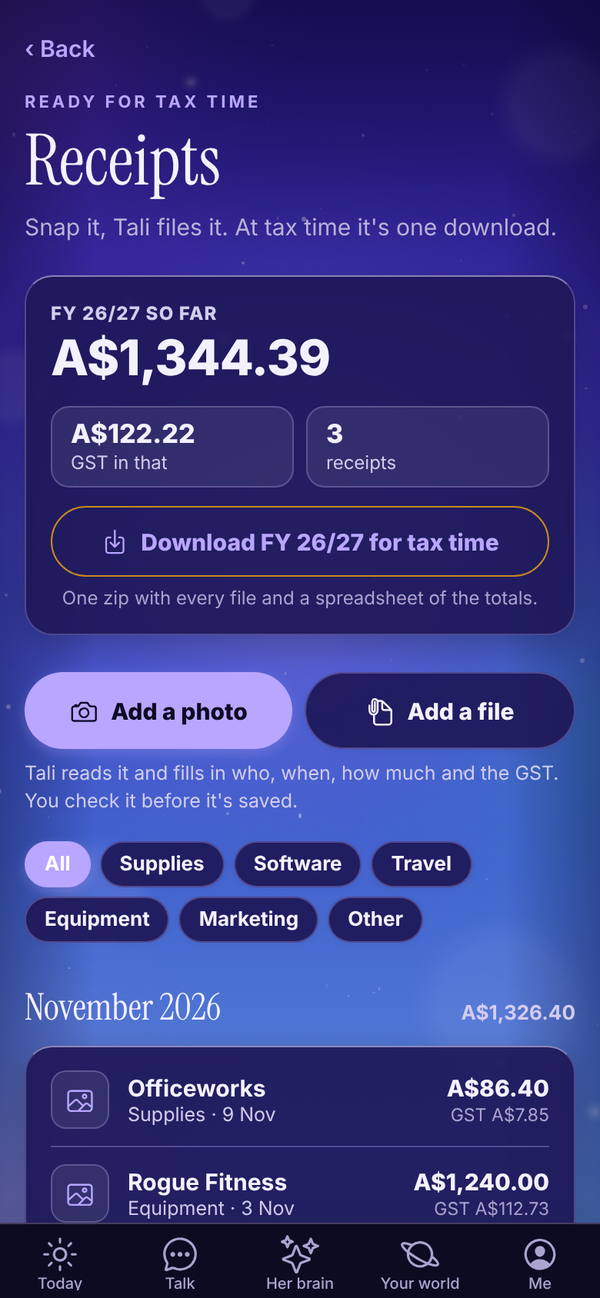
Add a receipt#
- Tap Snap a receipt (on a computer, Add a photo), or Add a file for a PDF or an emailed receipt.
- Tali reads it. It says "Reading it now..." for a few seconds.
- Under CHECK THIS BEFORE IT'S SAVED, check what she read: Who you paid, Date, Total, GST and the type (Supplies, Software, Travel, Equipment, Marketing or Other). Fix anything she got wrong.
- Tap Save receipt. Or Cancel to throw it away.
Reading a receipt uses no credits.
The list#
At the top is the financial year so far (1 July to 30 June): the total, the GST in that, and how many receipts. Below, receipts are grouped by month with each month's total. Each shows who you paid, the type, the date, the amount and the GST.
- View file opens the photo or PDF.
- Delete, then Tap again to delete.
Download for tax time#
Tap Download FY 26/27 for tax time (it names the current financial year). You get one zip with every receipt file and a spreadsheet of the totals, ready to hand to your accountant.
Questions#
Is Receipts on the Free plan?
No. Receipts are part of Tali HQ. On Free, the screen says so with See plans.
Does Tali do my tax?
No. She reads and files your receipts and gives you one download. Your accountant does the rest.
Tali read the GST wrong.
Fix it before you tap Save receipt. If there was no GST, leave the box blank.
Can I add a receipt from an email?
Yes. Save the receipt or PDF to your phone or computer, then tap Add a file.