
Totality for trainers
Your schedule and appointments
See your week, book one-off and recurring PT sessions, and complete, no-show or cancel them.
The Schedule tab is your week of PT sessions. At a gym it also shows the classes you teach and your rostered shifts.
Find your way around#
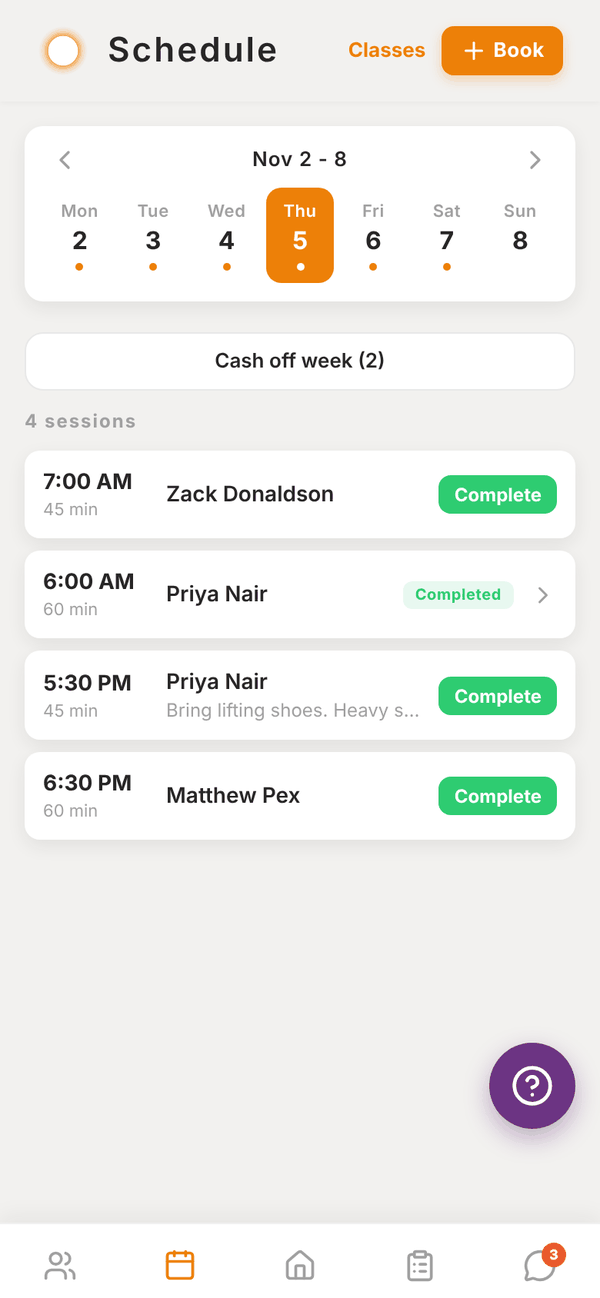
- The week strip shows Monday to Sunday. Use ‹ and › to change weeks. Dots mark days with sessions.
- Tap a day to see its sessions, sorted by time.
- Each session shows the time, length, client, and any note. Completed sessions are marked. Sessions still to do have a green Complete button.
- Cash off week settles every pending session in the week at once. See Credits.
- Classes at the top opens the gym's class timetable (gym trainers). See Classes.
- Pull down to refresh.
Book a session#
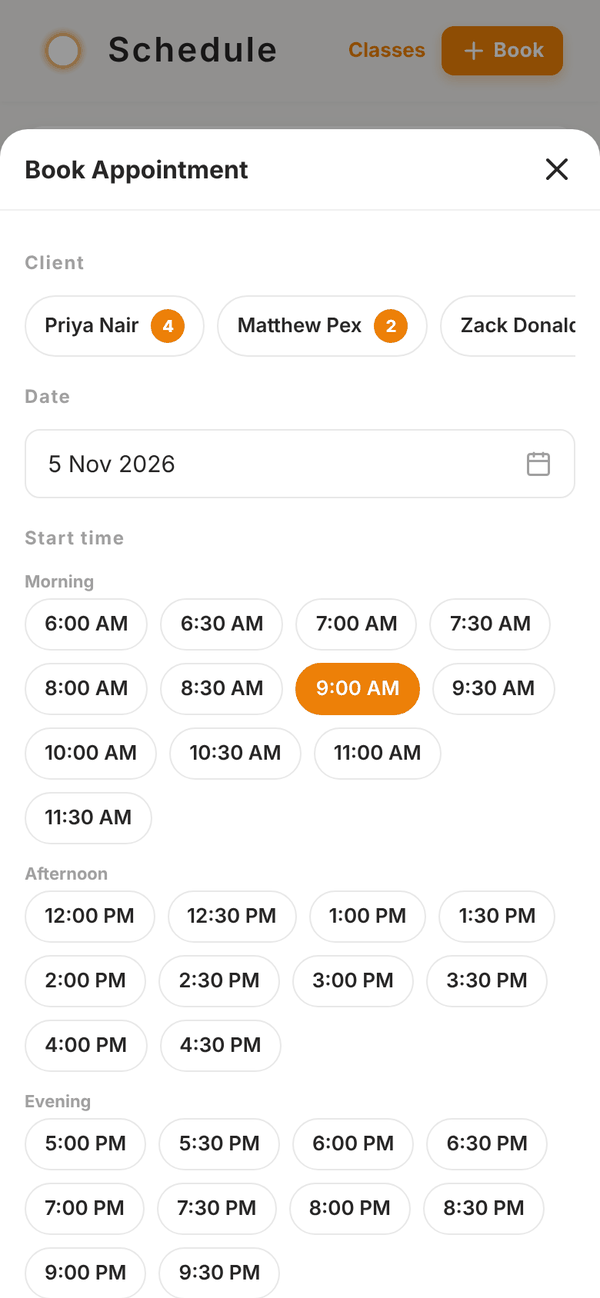
- Tap Book.
- Pick the Client. The number next to each name is how many credits they have.
- Pick the Date.
- Pick a Start time from the Morning, Afternoon and Evening slots (every 30 minutes, 6am to 9:30pm).
- Pick a Duration: 30, 45, 60, 75 or 90 minutes.
- Add Notes (optional), like "Bring lifting shoes".
- For a regular slot, switch on Recurring (weekly) and pick the Number of weeks: 4, 6, 8, 12 or 16.
- Tap Book session.
If you've connected Google Calendar, the times you're busy in Google show under the slots. Picking a busy time asks Busy in Google Calendar first, with Book anyway.
With the credit system on, booking uses one of the client's credits. If they have none, the session is still booked and marked Pending Settlement. You see a message telling you which happened. See Credits and settling sessions.
Session details#
Tap a session to open Session details: client, date, time, status, whether it's part of a weekly series, whether a credit was used, and notes.
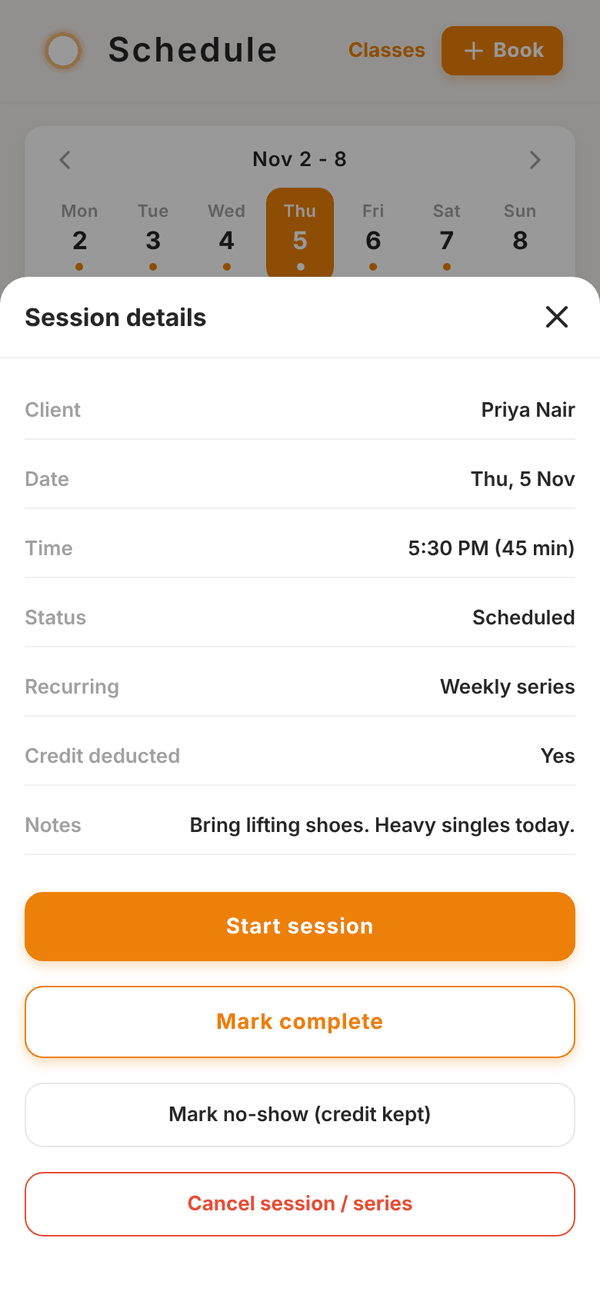
From here:
- Start session opens the live session for the client. See Running a session.
- Mark complete marks it done.
- Mark no-show (credit kept) records a no-show. The credit stays used.
- Cancel session cancels it. If a credit was used, it goes back to the client. For a recurring series you choose This session only or All future sessions.
Shifts (gym trainers)#
If your gym rosters you, My shifts shows your shifts for the next 14 days at the top of Schedule, with times and your role. Shifts are set by the gym admin.
Questions#
Can my clients book themselves?
No. You book PT sessions. Clients see them in their app as read only, with a link to message you if they need a change.
Can I see my sessions in my phone's calendar?
Yes. Connect Google Calendar, or add the calendar link to Google or Apple Calendar. See Calendar sync.
I booked the wrong time.
Open the session, tap Cancel session, and book it again at the right time. Any credit goes back to the client.