
Totality for gym owners
Adding members
Add a new member one at a time, invite someone who already uses Totality, and what your members see when they join.
You can add members one by one, or bring lots across at once with the Import wizard. Adding a member creates their login and adds them to your gym. Members use the app free.
Add a new member#
- Open the Members tab, then Add client. Or tap + Add Client on the Clients list.
- Type their Full Name and Email.
- Tap Invite Client.
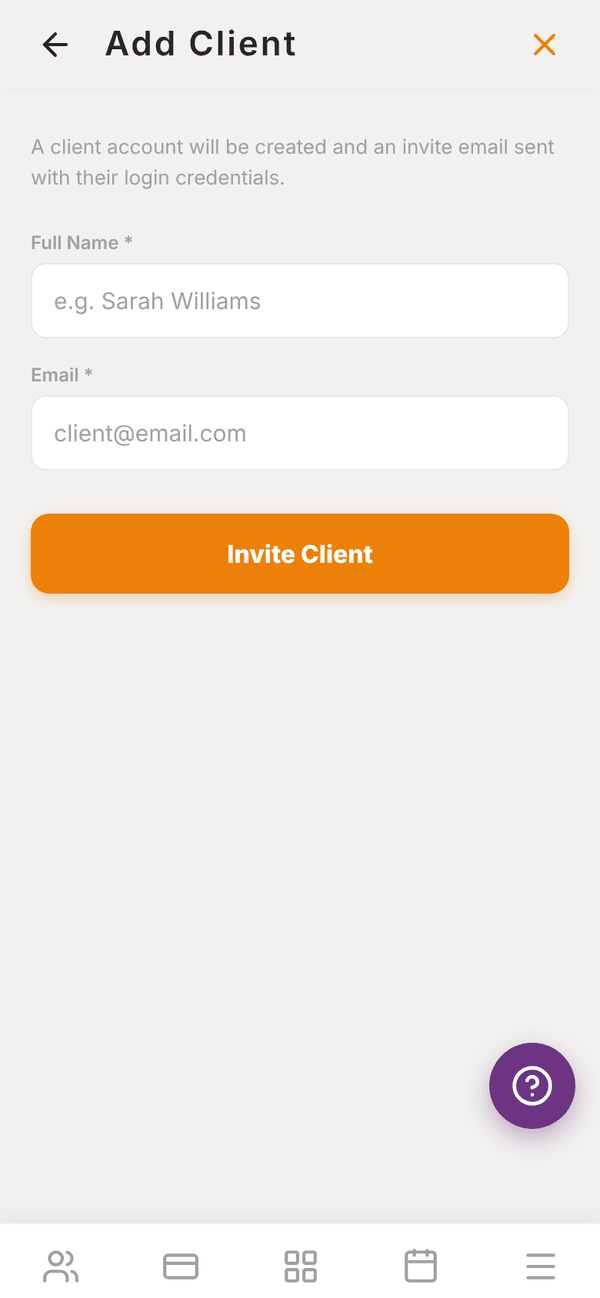
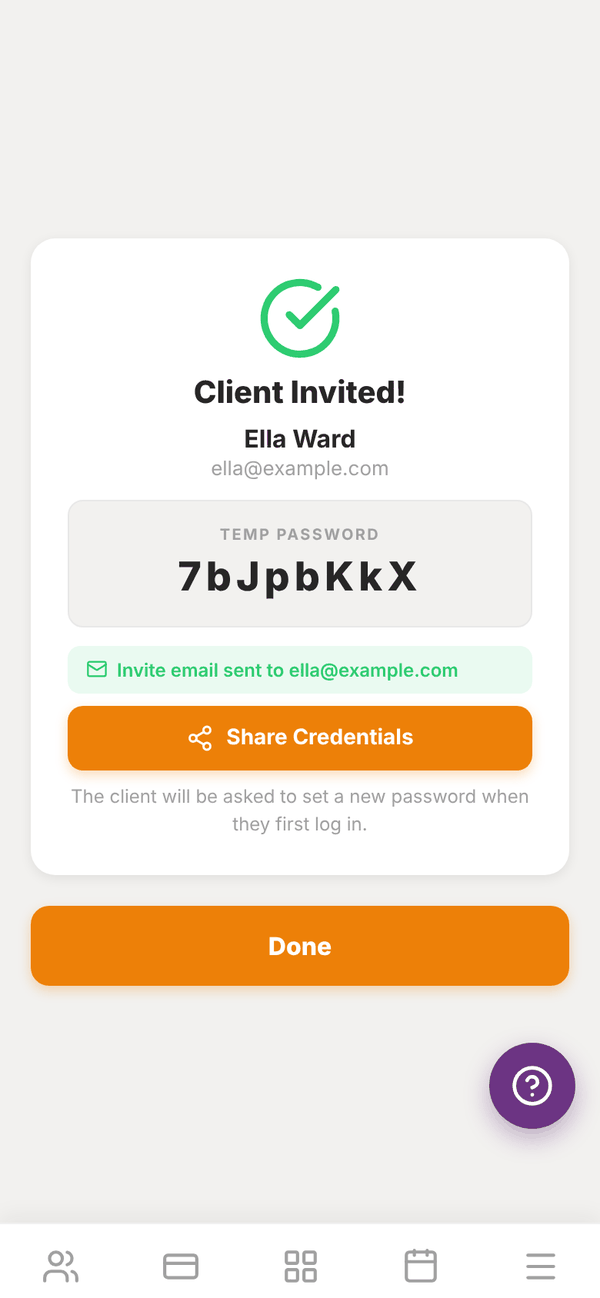
You see Client Invited! with their name, email and a TEMP PASSWORD.
- If the screen says "Invite email sent to ...", they have an email from your gym with their login details.
- If it says Email not sent: share credentials manually, tap Share Credentials and send them the details by text or another app.
The first time they log in, they are asked to set a new password of their own.
Add someone who already uses Totality#
If the email already has a Totality account (for example they train with a trainer, or use another gym), Totality does not create a new login. Instead:
- You see Invite sent: "They will see your invite in the app and join your gym once they accept it."
- They see your invite at the top of their app, with Accept and Decline.
- Nothing is linked, and you cannot see their profile or history, until they accept.
If they are already one of your members, you see Already a member.
When you hit your plan's limit#
If your gym has reached its plan's member limit, Add client shows a Locked pill and explains why ("You have reached the member limit on your plan."). Make some members inactive, or move up a plan.
After you add a member#
- Assign their trainer: open them and tap Reassign Trainer. See Members.
- Do their intake with them: Complete Intake on their page. See Client detail.
- Ask them to add a card if they will pay in the app: Request Payment Method. See Failed payments and cards.
- Set up their membership: see Memberships.
Members who sign up themselves#
Someone who downloads Totality and signs up on their own is not linked to your gym. They join your gym in one of two ways:
- You add them with Add client, using the email they signed up with. They get your invite in the app.
- They buy a membership from your gym's public store link. Buying a recurring membership there adds them to your gym. See Marketplace and shop.
Your join link shows your branding on the sign in screen, but does not add anyone by itself.
Questions#
A new member never got the email.
Check the email is spelt right on their profile. Ask them to check spam. They can also tap Forgot Password? on the sign in screen to set a password.
Can I change a member's email?
Not from the app. Email admintotality@gmail.com with the old and new address.
Can a member belong to two gyms?
A member can have one Totality account and accept invites from more than one gym or trainer. Each gym only sees its own members' details.