
Totality for gym owners
Trainers
Invite trainers to your gym, see their clients, and deactivate or remove them.
Every trainer at your gym gets their own Totality login with the trainer tools: their clients, programmes, sessions, check-ins and messages. They are covered by your gym plan, and your plan has no limit on trainers.
Trainers are under the More tab, then Staff, then Trainers. Inviting more than one trainer needs a gym plan Studio Club Enterprise.
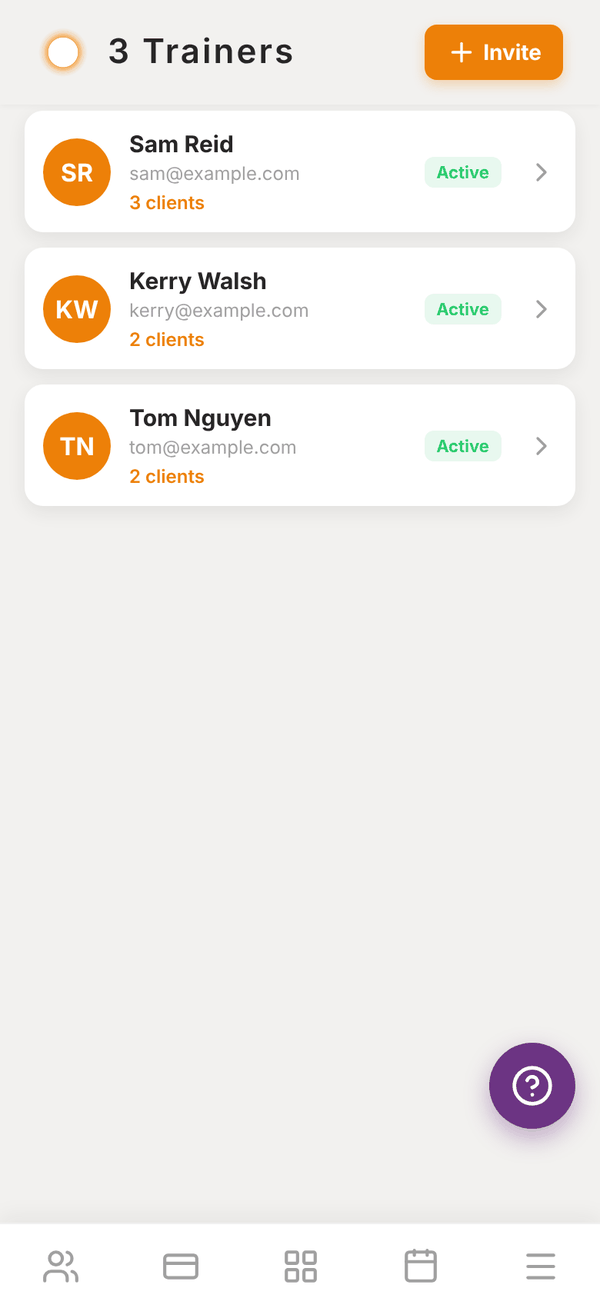
Invite a trainer#
- Open Staff, then Invite trainer. Or tap + Invite at the top of the Trainers list.
- Type their Full Name and Email.
- Tap Invite Trainer.
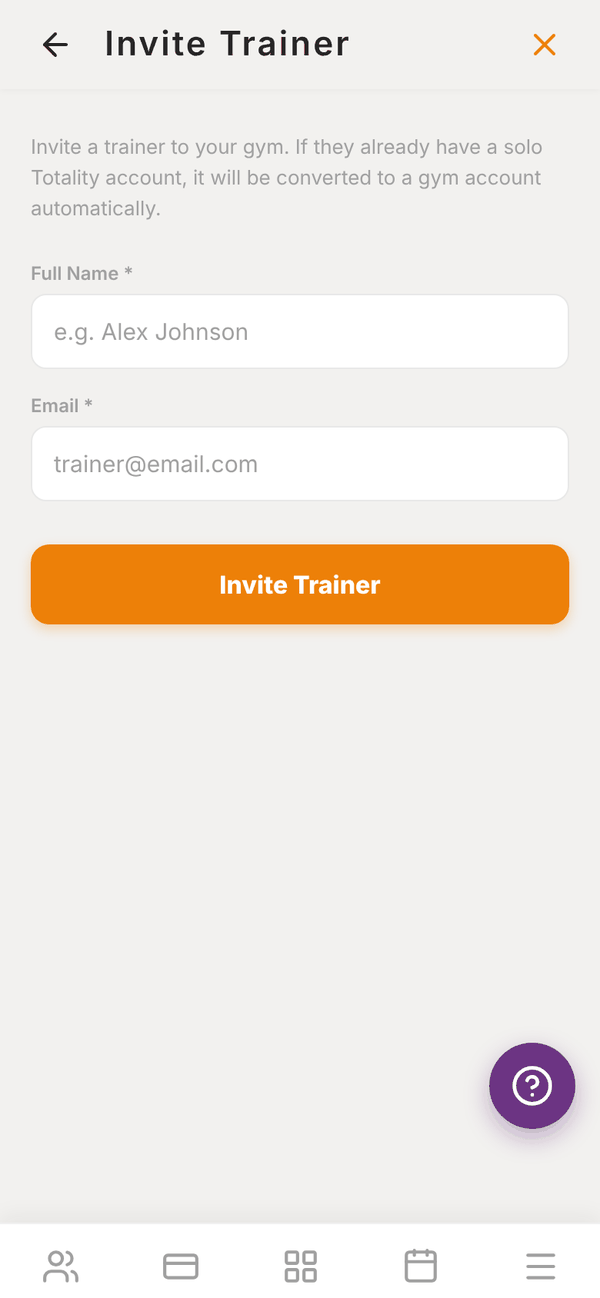
What happens next depends on the email:
| If the email | You see | What happens |
|---|---|---|
| Is new to Totality | Trainer invited: "Invite email sent to ... with login credentials." | Their account is made and they get an email with their login and a temporary password. They set their own password the first time they sign in |
| Already has a Totality account | Trainer invited: "They already have a Totality account. They will join your gym once they accept the invite in the app." | They see an invite at the top of their app with Accept and Decline. Nothing is linked until they accept |
If a trainer who pays for their own Solo plan accepts, their Solo plan and any add-ons they bought are cancelled at the end of their paid period, because your gym now covers them. Their own independent clients stay with them.
The Trainers list#
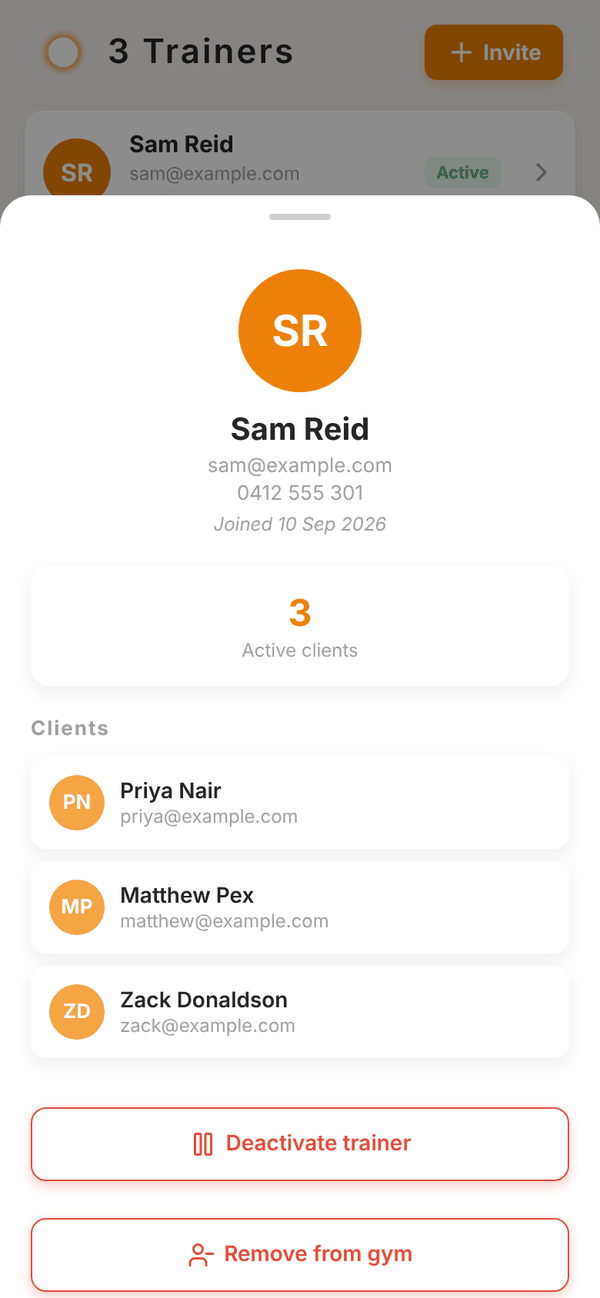
Each trainer shows their name, email, an Active or Inactive badge and how many clients they have. Tap a trainer to see their phone, when they joined, their Active clients count and the list of their clients.
To give a member to a trainer, or move members between trainers, use Clients. See Members.
Deactivate a trainer#
Use this when someone is on leave or has left and you may want them back.
- Tap the trainer, then Deactivate trainer.
- Read the message and tap Deactivate.
They lose access to your gym and its members straight away, and their clients at your gym become unassigned. Their own independent clients stay with them. You will see how many clients are now unassigned, so you can give them to another trainer from Clients.
To bring them back, tap the trainer and Reactivate trainer. Their old clients are not given back automatically, so assign them again from Clients.
Remove a trainer#
Remove from gym does the same as deactivating and also ends their place in your gym. They no longer appear in your list. You can invite them again later.
Roles#
There are two kinds of login at a gym:
- Gym owner or admin (you): everything in this guide.
- Trainer: the trainer tools for their own clients, the gym's members list, the schedule and their own roster shifts. Trainers cannot see your billing, payroll, revenue or settings.
On the staff roster you can also give each shift a role label, like front desk, floor or PT.
Questions#
Do I pay extra for each trainer?
No. Every gym plan includes unlimited trainers.
The trainer never got the email.
Ask them to check spam. They can also use Forgot Password? on the sign in screen with the email you invited. If they already had an account, they need to open the app and accept the invite at the top of their home screen.
Can a trainer see all my members?
Trainers see their own clients in full. They can see your gym's members list with basic details, so they can help on the floor, but not other trainers' clients' programmes or notes.
Can a trainer take payments?
Trainers at your gym can create POS payment links for your gym. The money goes to your gym's Stripe account. See Charges and POS.