
Totality for gym owners
Staff roster
Plan who is working when, copy a week forward, and let staff see their own shifts.
The Staff roster is a weekly grid of your staff (down the side) by day (across the top). Your trainers see their own upcoming shifts in their app under My shifts.
Open More, then Staff, then Rosters.
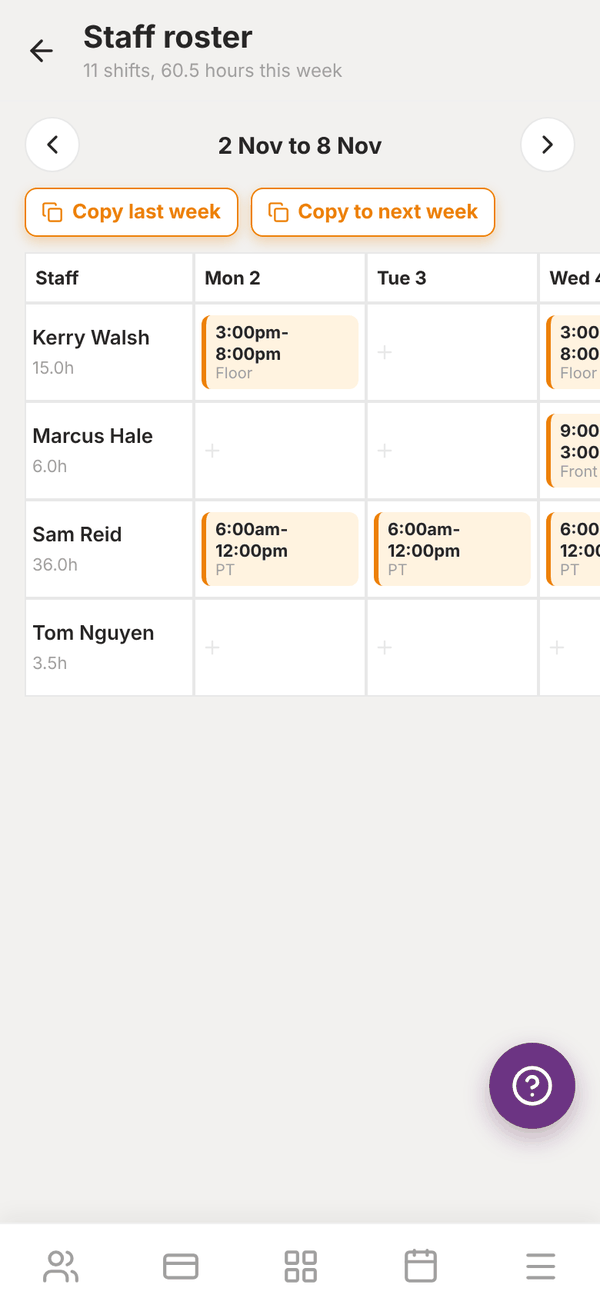
At the top you see the week's totals, for example "11 shifts, 60.5 hours this week". Use the arrows either side of the dates to move between weeks. Each person's row shows their total hours for the week. Scroll sideways to see the rest of the week.
Everyone with a trainer or admin place at your gym appears on the roster, including you.
Add a shift#
- Tap an empty cell (the +) for that person and day.
- Check Staff and Date, and set the Start and end times.
- Optional: add a Role ("Front desk, floor, PT...") and Notes ("Open up, cover for...").
- Tap Save.
Change or delete a shift#
Tap the shift, change anything and tap Save, or tap Delete.
Copy a week#
- Copy last week fills this week with last week's shifts.
- Copy to next week copies this week's shifts into next week.
Shifts that already exist (same person, same day, same start time) are not doubled up, so it is safe to tap these more than once.
Questions#
Do trainers get told about new shifts?
They see their shifts for the next 14 days in their app under My shifts. There is no separate alert for a new shift, so let them know if you make a late change.
Does the roster feed into payroll?
No. Payroll pays completed sessions, classes and the hours you log in Payroll. The roster is for planning. See Payroll.
Someone is missing from the roster.
Only trainers and admins of your gym appear. Invite them as a trainer first.