
Totality for gym owners
Classes and bookings
Create your classes, put them on the timetable (once or every week), set capacity and prices, and manage bookings and cancellations.
Classes work in two layers:
- A class is the template: Strength Circuit, 45 minutes, 12 people, Sam teaching.
- A session is one time it runs on the timetable: Thursday 9:30am.
Members see your sessions in their app, book in, and pay if the class is not covered by their membership. Classes are part of every gym plan Studio Club Enterprise.
Open the Schedule tab, then Classes. Use the Classes and Sessions buttons at the top to switch.
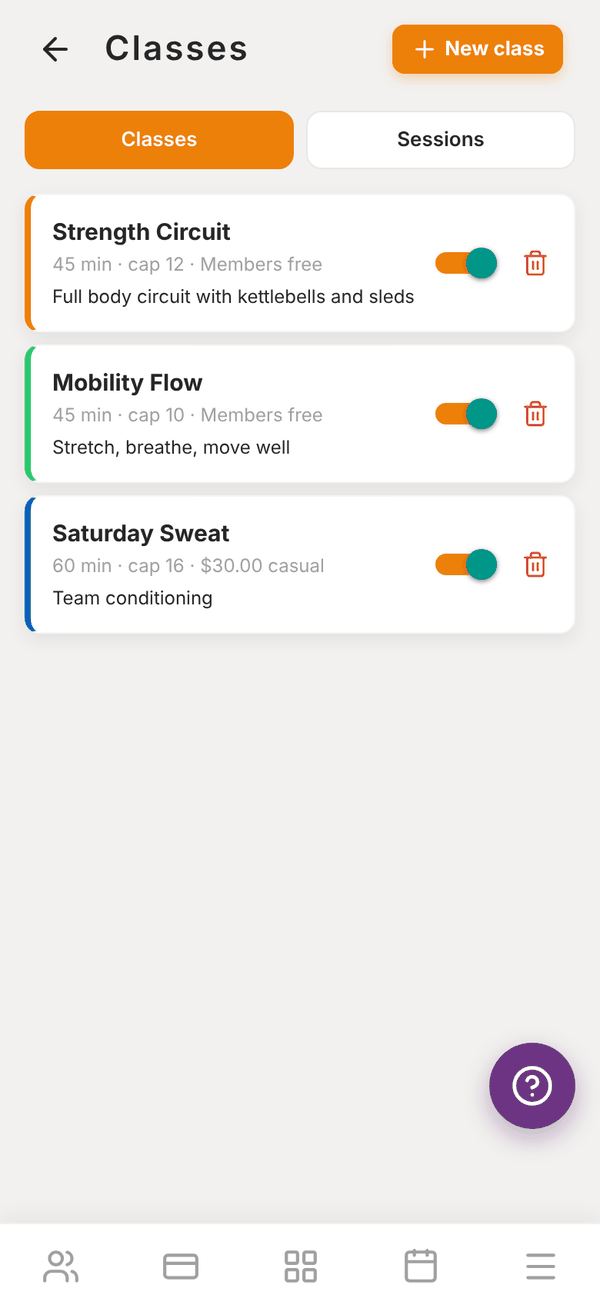
Create a class#
- On Classes, tap + New class.
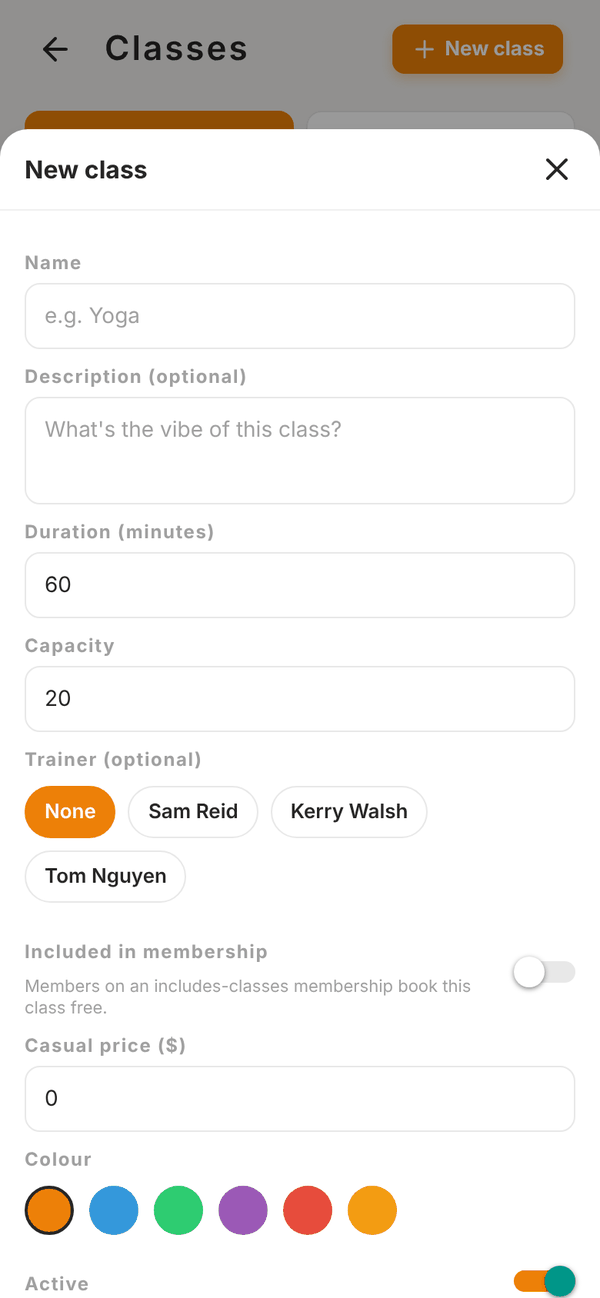
- Enter the Name (for example Yoga) and an optional Description ("What's the vibe of this class?").
- Set the Duration (minutes) and Capacity (the most people who can book).
- Pick the usual Trainer (optional).
- Decide who pays (see below): turn on Included in membership, and/or set a Casual price ($).
- Pick a Colour for the timetable, leave Active on, and save.
Each class shows its length, capacity and price, for example "45 min · cap 12 · Members free" or "60 min · cap 16 · $30.00 casual". Use the switch to make a class inactive, or the bin to delete it.
Who pays for a class#
| Class setting | Member on a membership with Includes classes | Everyone else |
|---|---|---|
| Included in membership on | Books free | Pays the casual price (free if it is $0) |
| Included in membership off | Pays the casual price | Pays the casual price |
| Casual price $0 | Free | Free |
Paid bookings are charged to the member's saved card when they book, and they get a confirmation by push and email. Set Includes classes on the membership itself in Memberships.
Put a class on the timetable#
- On Sessions, tap + Schedule.
- Pick the Class and the Trainer.
- Pick the Date and type the Start time (HH:MM, 24hr), for example 09:00 or 18:30.
- Pick a Duration, or Custom (minutes).
- Optional: add Notes ("Anything trainers / clients should know?").
- To run it every week, turn on Recurring schedule, tick the days under Repeat on, and pick For how many weeks: 2, 4, 6, 8 or 12.
- Tap Schedule. You see how many sessions were scheduled.
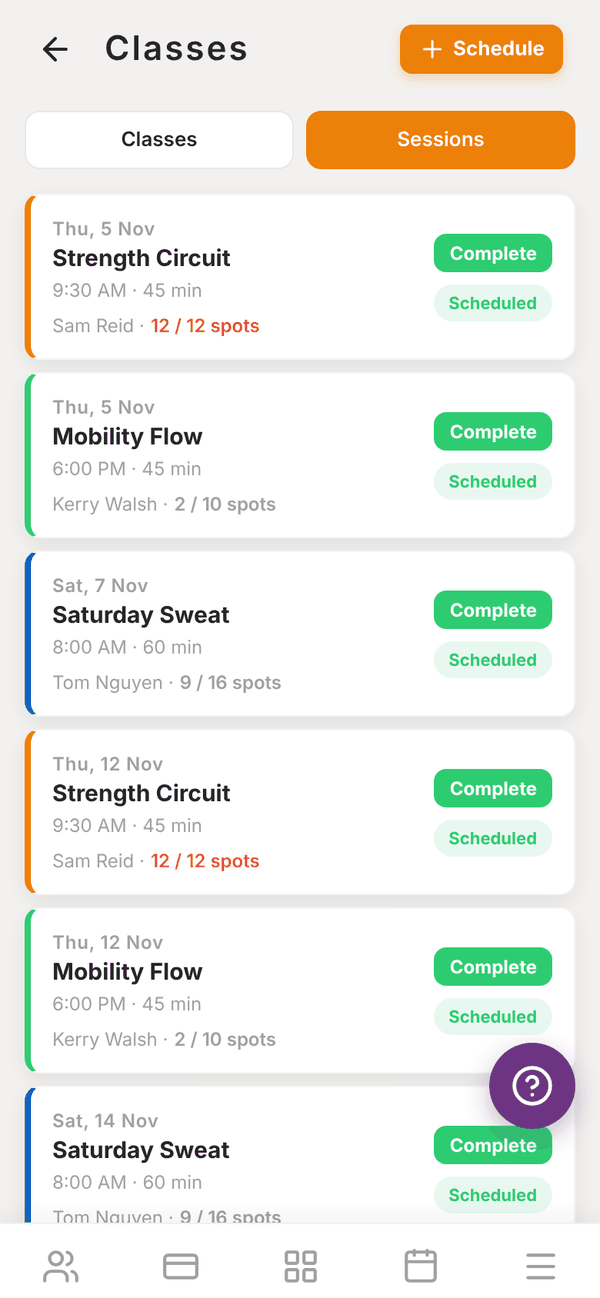
The Sessions list shows each session's date, time, trainer and how full it is (for example 12 / 12 spots, in red when full).
Manage one session#
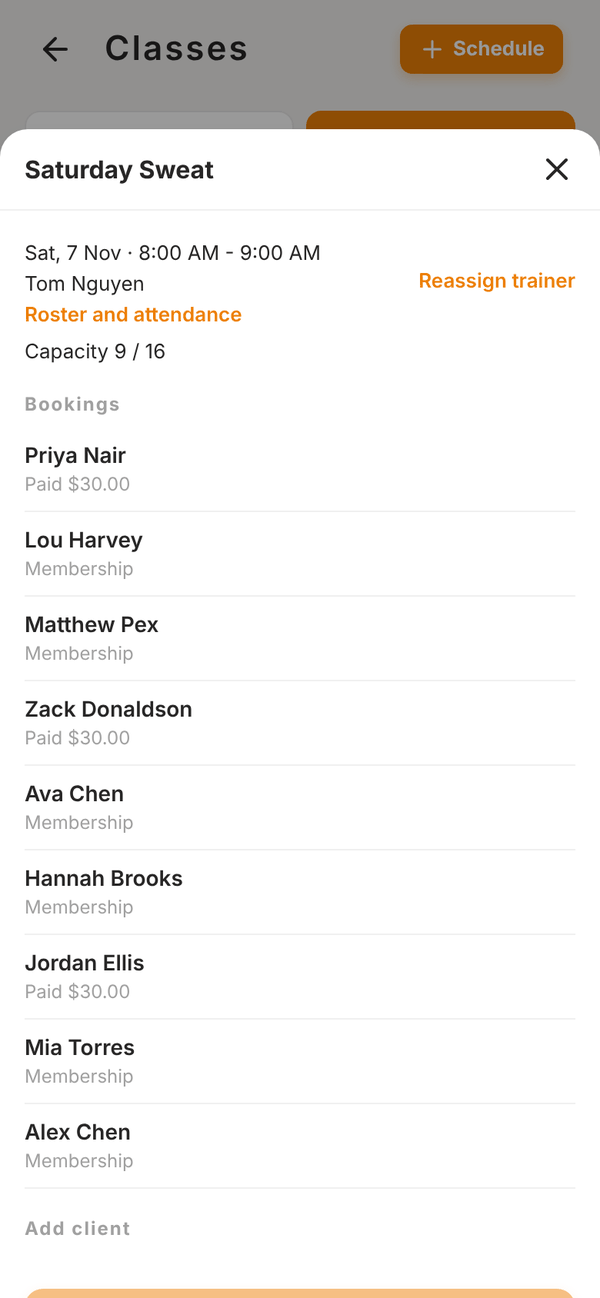
Tap a session to open it:
- The date, time, trainer and Capacity (for example 9 / 16).
- Bookings: everyone booked in, and whether they are on a membership or paid.
- Add client: book a member in yourself. Bookings you make here are free for the member (Book client (waived)).
- Roster and attendance: mark who came. See Class roster and waitlists.
- Reassign trainer: pick a substitute trainer and tap Confirm reassignment. The new trainer gets a push ("New class assigned") and the session shows them.
- Complete: mark the session as done once it has run. Completed classes count towards the trainer's pay.
Cancel a session#
Tap Cancel session on the session and confirm. Totality:
- cancels the session and every booking,
- refunds everyone who paid by card, automatically,
- sends every attendee a push notification and an email.
You then see how many were refunded. If a refund failed, cancel the session again to retry it. Bookings paid outside Stripe are listed for you to refund yourself.
When members cancel#
Members can cancel their own booking in the app any time before the class starts. Paid bookings they cancel are not refunded automatically: the app tells them to contact the gym first. If you want to refund them, email admintotality@gmail.com.
When a member cancels, the next person on the waitlist gets the spot. See Class roster and waitlists.
Questions#
Can a frozen member book a class?
No. Members with a frozen membership cannot book until the freeze ends. See Check-in and freezes.
Members are not seeing my class.
Check the class is Active and that you have scheduled a session (a class with no sessions does not show on the timetable). Members only see classes at gyms they belong to.
Can I change the time of one session?
Cancel that session and schedule a new one at the new time. Cancelling tells everyone booked and refunds anyone who paid.
Do members get reminders?
Yes. Members get a push and an email about an hour before each class they have booked.