
Totality for gym owners
Members
Your full members list: search and filter, see intake and card status at a glance, assign trainers and message or update members in bulk.
Clients is every member of your gym, across all your trainers. In Totality, members are called clients. Open the Members tab, then Clients, or tap Active members on the dashboard.
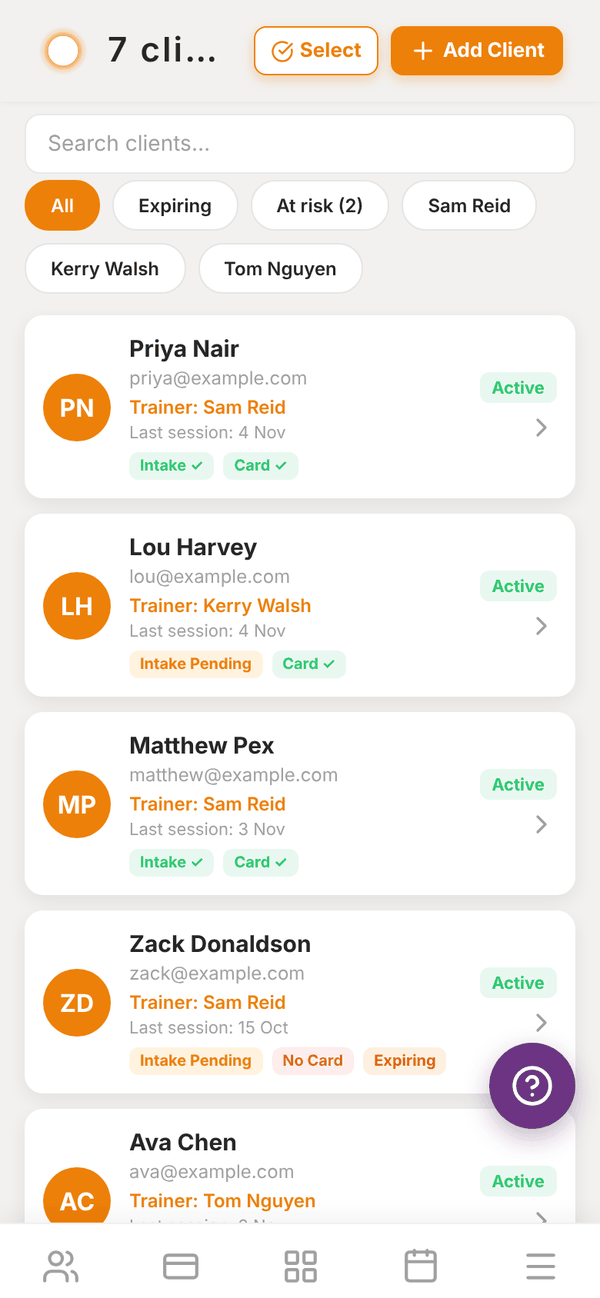
What each row shows#
- Name, email and status: Active, Inactive or Lead.
- Trainer: who they are assigned to.
- Last session: when they last logged a workout.
- Badges:
- Intake ✓ or Intake Pending: whether their intake form (PAR-Q, health history and waiver) is done.
- Card ✓ or No Card: whether they have a card saved with your gym.
- Expiring: their membership ends in the next 15 days.
Tap a member to open their client detail.
Search and filter#
- Search clients... finds members by name or email.
- All shows everyone.
- Expiring shows members whose membership ends soon.
- At risk shows members with no app activity for 14 days or more. Tali can draft a nudge for them from their page. See Tali AI for gyms.
- A chip for each trainer shows just their members.
Do things in bulk#
- Tap Select.
- Tap members to tick them, or select all.
- Pick an action at the bottom: - Message: send the same message to everyone selected. It arrives in their Messages. - Assign: give them all to one trainer (Assign Trainer). - Status: set them all to Active, Inactive or Lead (Change Status).
- Tap Cancel to leave select mode.
Assign a trainer#
To give one member to a trainer, open the member and tap Reassign Trainer under MEMBERSHIP. To move several at once, use Select then Assign as above. Assigning a member to a trainer lets that trainer coach them: programmes, sessions, check-ins and messages.
Member statuses#
| Status | Meaning |
|---|---|
| Active | A current member. Counts towards your plan's member limit |
| Inactive | Not current. Keeps their history. Does not count towards your limit |
| Lead | Someone interested who has not joined yet |
To change one member, open them and tap Deactivate Client or Reactivate Client at the bottom of their page.
Questions#
Why is a member missing?
Check the search box is empty and All is selected. Members appear here once they have joined your gym. If you invited someone who already had a Totality account, they appear after they accept your invite.
What is the difference between a member and a client?
Nothing. Totality calls everyone who trains at your gym a client.
Does making someone inactive cancel their payments?
No. It only changes their status in Totality. To stop a membership payment, cancel it in Memberships.
Can I delete a member?
You cannot delete a member's account from the gym. Make them Inactive instead, which keeps their history. A member can delete their own account from their Settings.