
Totality for gym owners
Importing your data
Bring members, trainers, membership types and history across from a spreadsheet or another gym system, step by step.
The Import wizard brings your data across from a spreadsheet or your old gym software in four steps: pick what you are importing, upload the file, match the columns, then import. You can run it as many times as you like, one file per run.
Open it from Members, then Import data, or from Settings, then Import. The dashboard's setup card also has a link.
Before you start#
- Export your data from your old system as CSV, XLS or XLSX. See File formats and columns for exactly what each import needs and how to export from PTminder, ABC Trainerize and Mindbody.
- Import your trainers first, then your clients. The client import can link each member to their trainer, but only to trainers already in your gym.
- Check your plan's member limit. The import cannot add more active members than your plan allows.
- Each run imports up to 2,000 rows. Split bigger files into parts.
Step 1: Type#
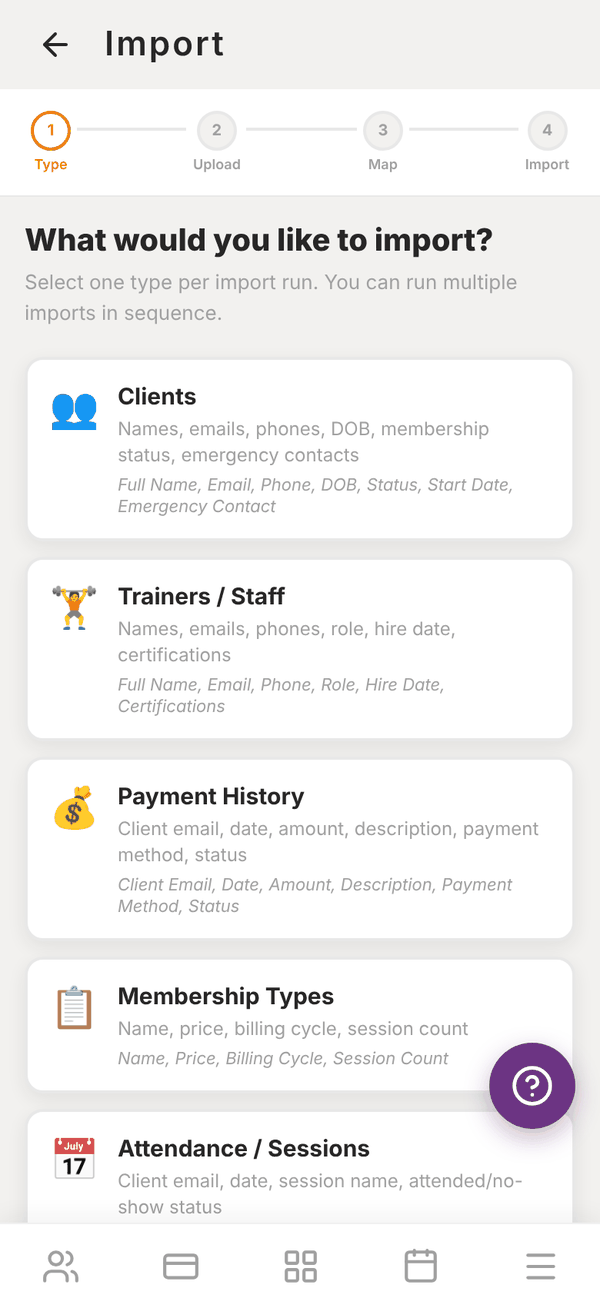
Pick one type for this run under What would you like to import?
| Type | What it brings in |
|---|---|
| Clients | Members: names, emails, phones, date of birth, membership status, start date, emergency contacts, assigned trainer |
| Trainers / Staff | Names, emails, phones, role, hire date, certifications |
| Payment History | Past payments: client email, date, amount, description, method, status |
| Membership Types | Your membership options: name, price, billing cycle, session count |
| Attendance / Sessions | Past visits: client email, date, session name, attended or no-show |
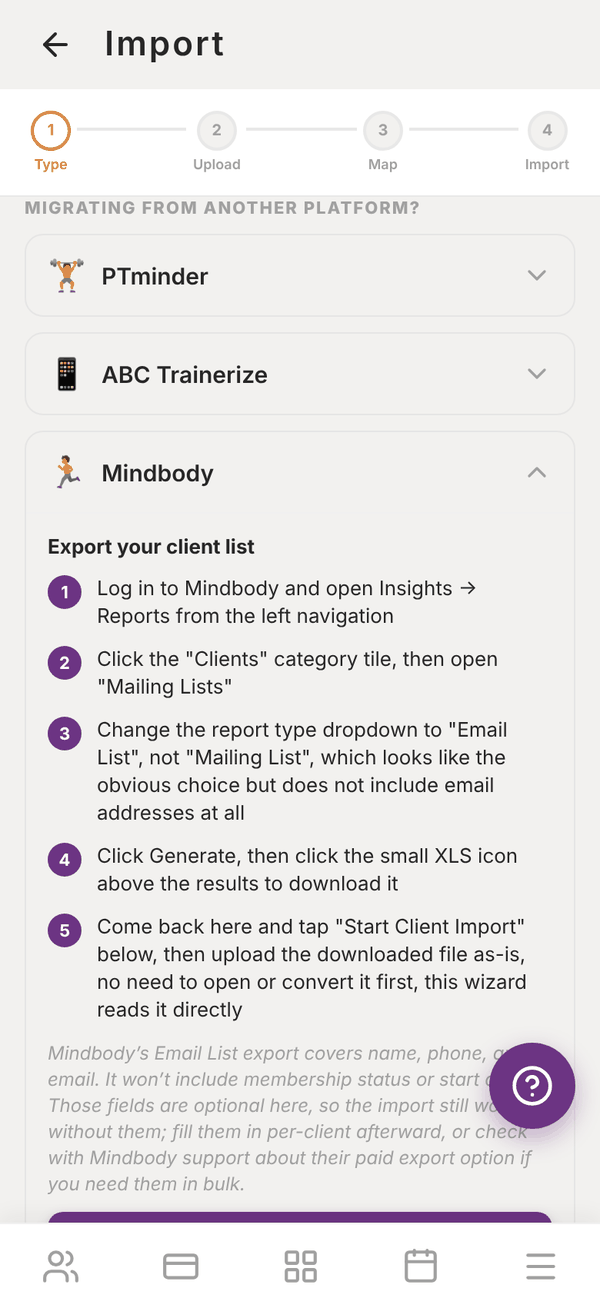
| Mindbody | A Mindbody client list, read as-is |
| PTminder | PTminder client exports, read as-is |
| Documents / Waivers | Client email, document type, signed date, expiry date |
Under MIGRATING FROM ANOTHER PLATFORM? there are step-by-step export guides for PTminder, ABC Trainerize and Mindbody. Tap one to open it, follow the steps, then tap its Start Import button.
Tap Next: Upload File.
Step 2: Upload#
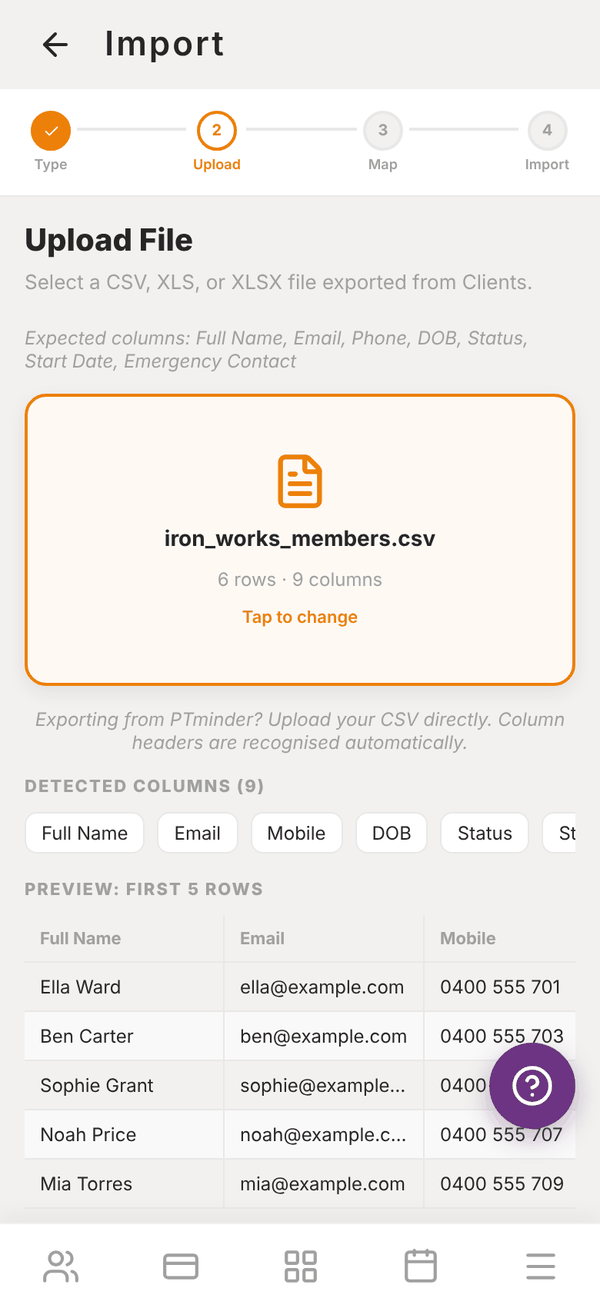
- Tap Select File ("Tap to browse your device: CSV, XLS, or XLSX").
- Pick your file. Exports straight from Mindbody can be uploaded as they are, without opening or converting them first.
- Check PREVIEW: FIRST 5 ROWS looks right. If your file has more than 2,000 rows, you will see a warning that only the first 2,000 will be imported.
- Tap Next: Map Columns. Tap the file name if you want to pick a different file.
Step 3: Map columns#
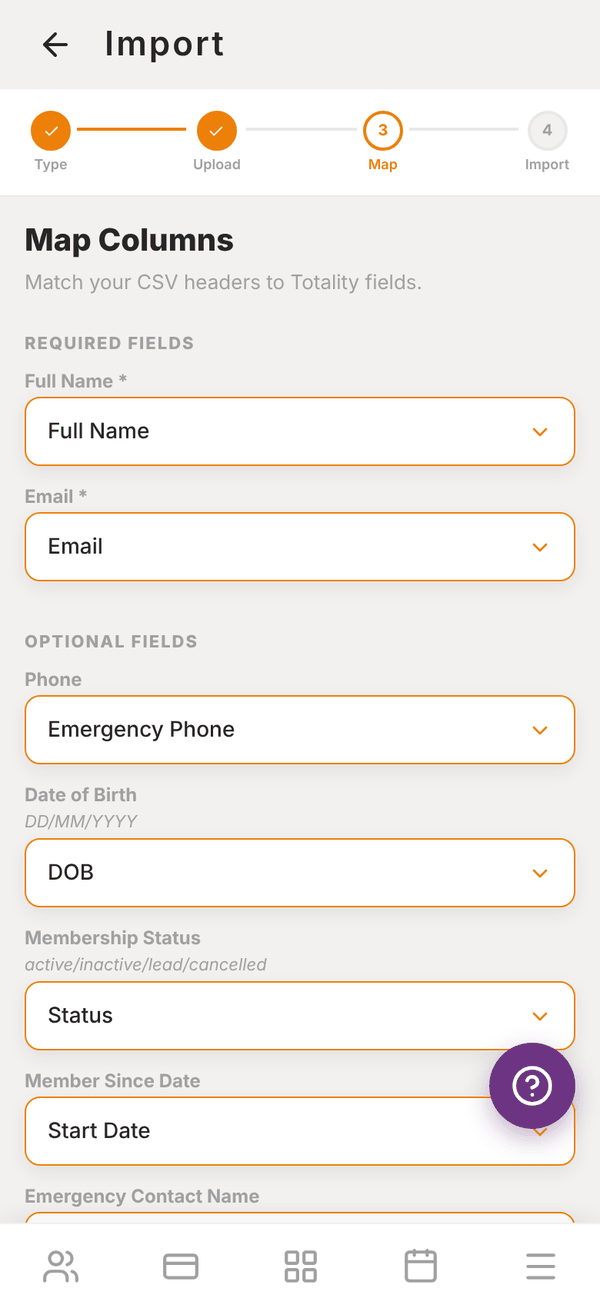
Totality matches your column headings to its own fields automatically. Check each one under REQUIRED FIELDS and OPTIONAL FIELDS, and change any that are wrong by tapping the field and picking the right column. Pick Skip this field for anything you do not want to bring in.
Check the guesses. An exact heading wins, so a Phone column goes to Phone and an Emergency Phone column goes to Emergency Contact Phone. Required fields must be matched before you can go on. For Clients these are Full Name and Email.
If you match Assigned Trainer, the screen lists Trainers in your gym, matched by name. A member is linked to a trainer when the value in your file matches the trainer's full name or email exactly (capitals do not matter).
LIVE PREVIEW: FIRST 3 ROWS shows how your first rows will come in. Tap Next: Review & Import.
Step 4: Review and import#
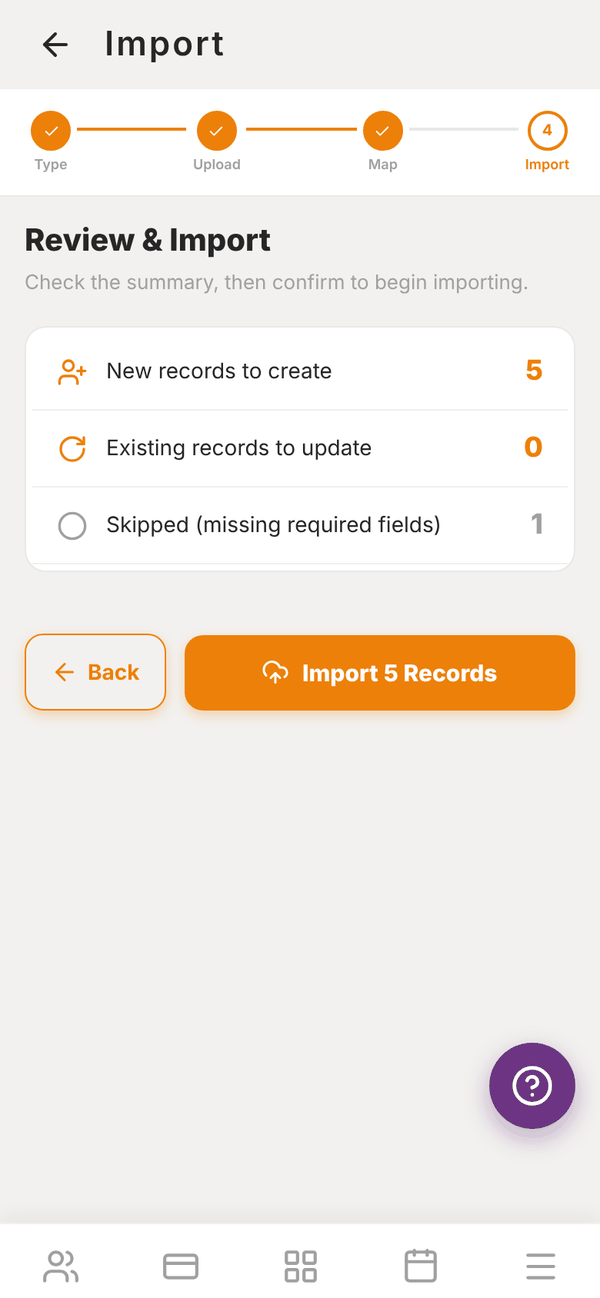
Totality checks which emails already have an account ("Checking for existing records...") and shows:
- New records to create
- Existing records to update
- Skipped (missing required fields): rows with no name or a missing or invalid email
- Skipped (same email as an earlier row): shows if an email is in your file more than once. Only the first row with that email is imported
Tap Import N Records. A progress screen shows "Importing 12 of 48..." Keep the app open until it finishes.
When it finishes#
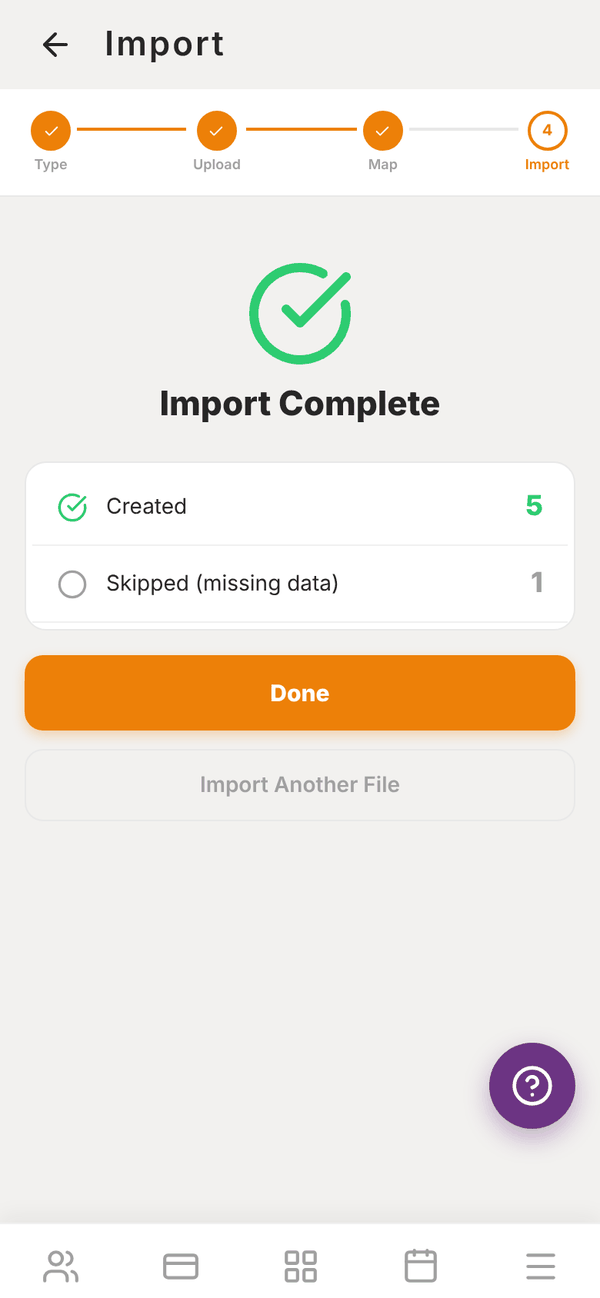
Import Complete shows how many were Created, Updated, Skipped (missing data), Skipped (duplicate email) and Failed. If any emails were in the file more than once, it lists them. A trainer import also tells you if any rows asked for an admin role (see the Role column).
- If any failed, tap Download Error Report to get a list of those rows and why, fix them in your spreadsheet and import just those rows again.
- Tap Import Another File to start the next run, or Done to finish.
Now go through After importing.
What happens to imported members#
For each new member, Totality:
- creates their account and adds them to your gym
- emails them an invite from your gym with their login details and a temporary password
- saves their phone, date of birth and emergency contact
- sets their membership status and start date, if you included them
- links them to their trainer, if you included an assigned trainer that matches
If an email already has a Totality account, their details are updated instead and no new invite is sent.
Questions#
Can I undo an import?
No. Check the preview and the mapping carefully first. If something went wrong, email admintotality@gmail.com.
What if the same email is in my file twice?
Only the first row with that email is imported, so they get one invite. The other rows are skipped (capitals do not matter) and listed on the Import Complete screen, so check that the first row was the one you wanted.
Can I import programmes or workout history?
Not with this wizard. Most systems, including ABC Trainerize, do not offer a self-serve export of programmes or workout history. Keep your old account until you no longer need that history.
Does importing move my members' payments across?
No. Billing in your old system keeps running until you stop it there. See After importing for how to move members onto Totality billing.